EDRs per SIM Card
Note:
All Voice-related options and use cases are only applicable and available in case Voice Services are licensed on the CMP instance.
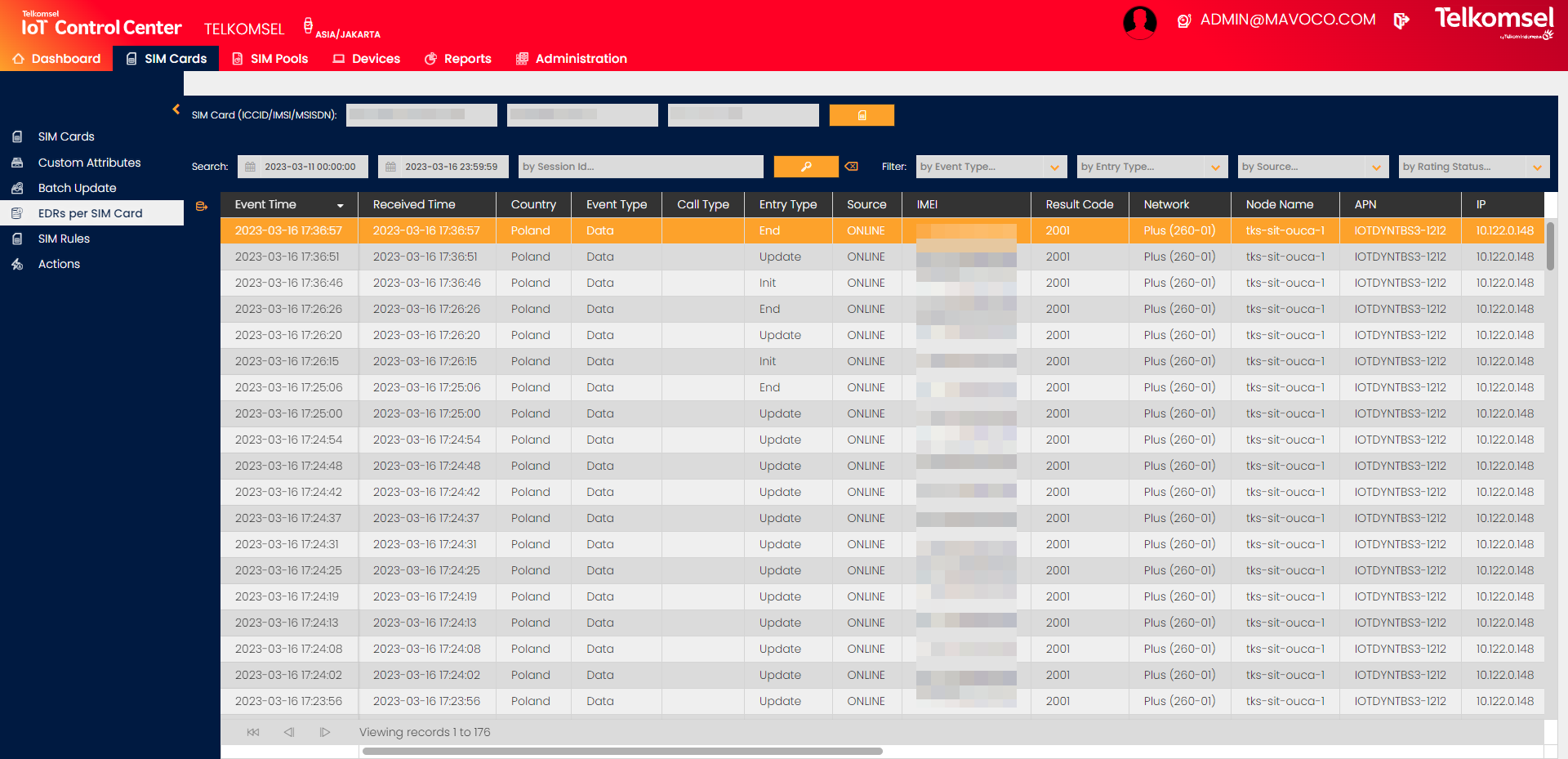
EDR (Event Data Record) is the smallest unit of information that the CMP produces. Depending on the Price Plan, information about the use of the services is stored at short intervals. Since a stable session can take hours, the EDR can be used for more detailed analysis within a session.
Field | Description | Field | Description |
|---|---|---|---|
Event Time (UTC) | The date and time for the creation of the EDR entry in the CMP Platform. | IP | IPv4 Address as used by the Device during the Packet Data session (Gy interface only). |
Received Time (UTC) | Time of the receiving CCR event by OUC server from a Network (GGSN/PGW or SMSC GW peer). | Radio Access Type | The identifier for the Radio Access Technology used by the Device. |
Country | Mobile Country Code as provided by the Network. | SGSN IP | SGSN IPv4 address used over the duration of the data session. |
Event Type | Possible values DATA, SMS, VOICE. | Duration | Duration of the call or session provided in hours with minutes and seconds in case of partial hours (e.g. 25:15:01). |
Call Type | Possible values MO (Mobile Originated), MT (Mobile Terminated). Only applicable for SMS and Voice. | A Party | Number of A (i.e. caller) Party (for Voice EDRs only). |
Entry Type | Scenario ID:
| B Party | Number of B (i.e. called) Party (for Voice EDRs only). |
Source | Possible values ONLINE, OFFLINE. | In Bytes | Number of input bytes as since the last report for Update or Terminate event. |
IMEI | Device IMEI value as provided by the Network. | Out Bytes | Number of output bytes since the last report for Update or Terminate event. From a Device point of view, it is the number of downloaded bytes. |
Result Code | Result Codes provided by diameter's response. | Total Bytes | Total number of input and output bytes. |
Network | The name of the Network as defined in the rating table. | SMS | The number of SMS messages sent/received by Device for the SMS session on the Ro diameter interface. |
Node Name | Name of the OUC server handling a given session. | Session Id | Diameter session identifier as generated by diameter client peer (SMS node). |
APN | Access Point Name. | Rating Status | Rating Status of the EDR.
*A tooltip displays the error cause for EDRs where Rating Status is Processed with error. |
The EDRs per SIM Card tab displays EDRs only for one selected SIM Card and the selection of a single SIM Card assigned to the Account is mandatory before the query can be performed against the database.
To select a SIM Card:
- Click on the Select SIM Card
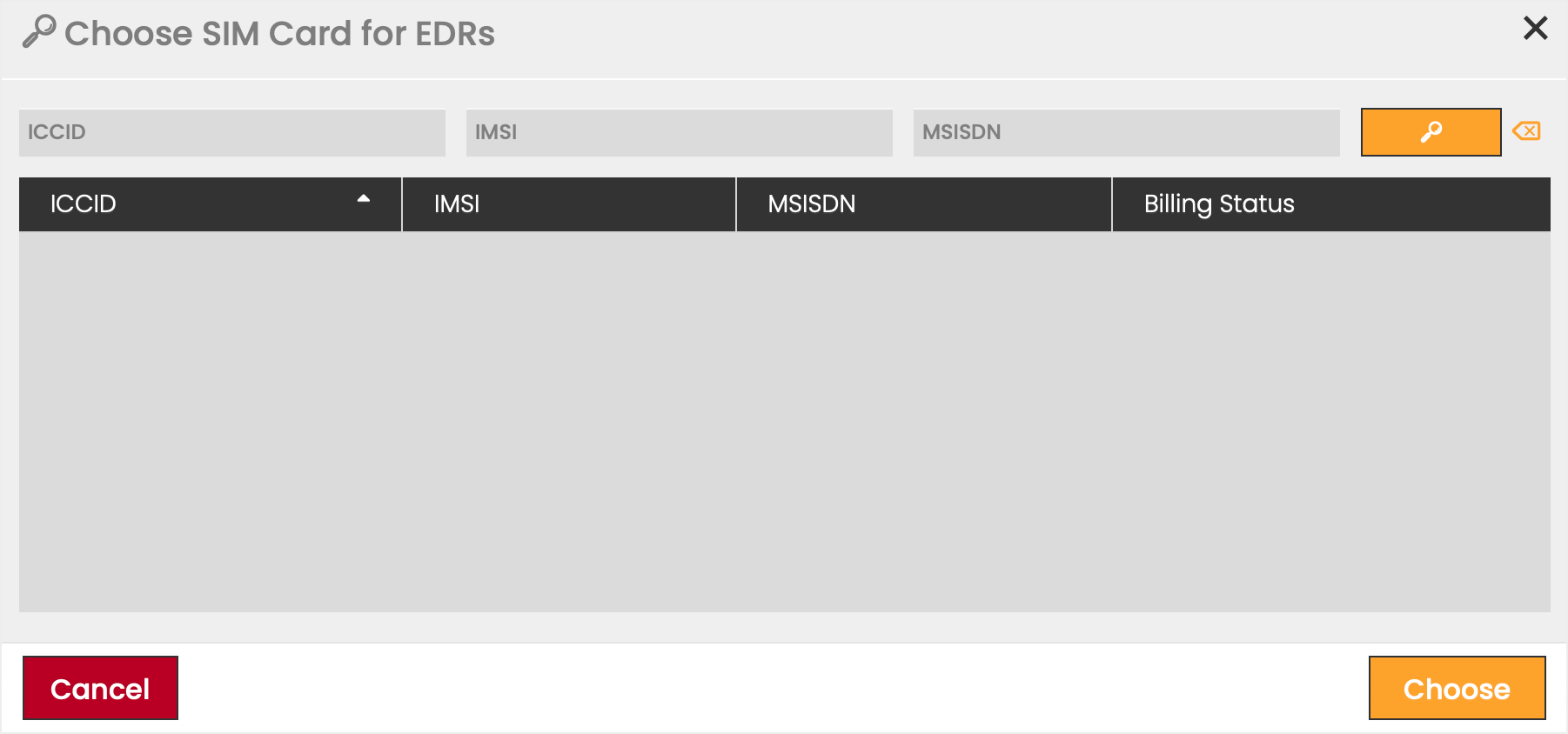
 icon to open the Choose SIM Card for EDRs dialog box.
 - Enter any of the following search criteria: ICCID, IMSI, or MSISDN. Partial numbers are also accepted.
Note that AND operator is used to join multiple criteria when more than one is entered.
The defined search criteria can be removed by clicking on the Clear search icon.
icon. - Click the Search button or hit Enter on the keyboard.
- Click Choose to apply your selection.
A warning message instructing the User to limit the search is displayed if the search result size exceeds 200 items.
This functionality can be also triggered from the SIM Grid by clicking the  icon in the EDR column. For a detailed description see the EDRs per SIM Card section in the SIM Card Management page.
Search for EDRs
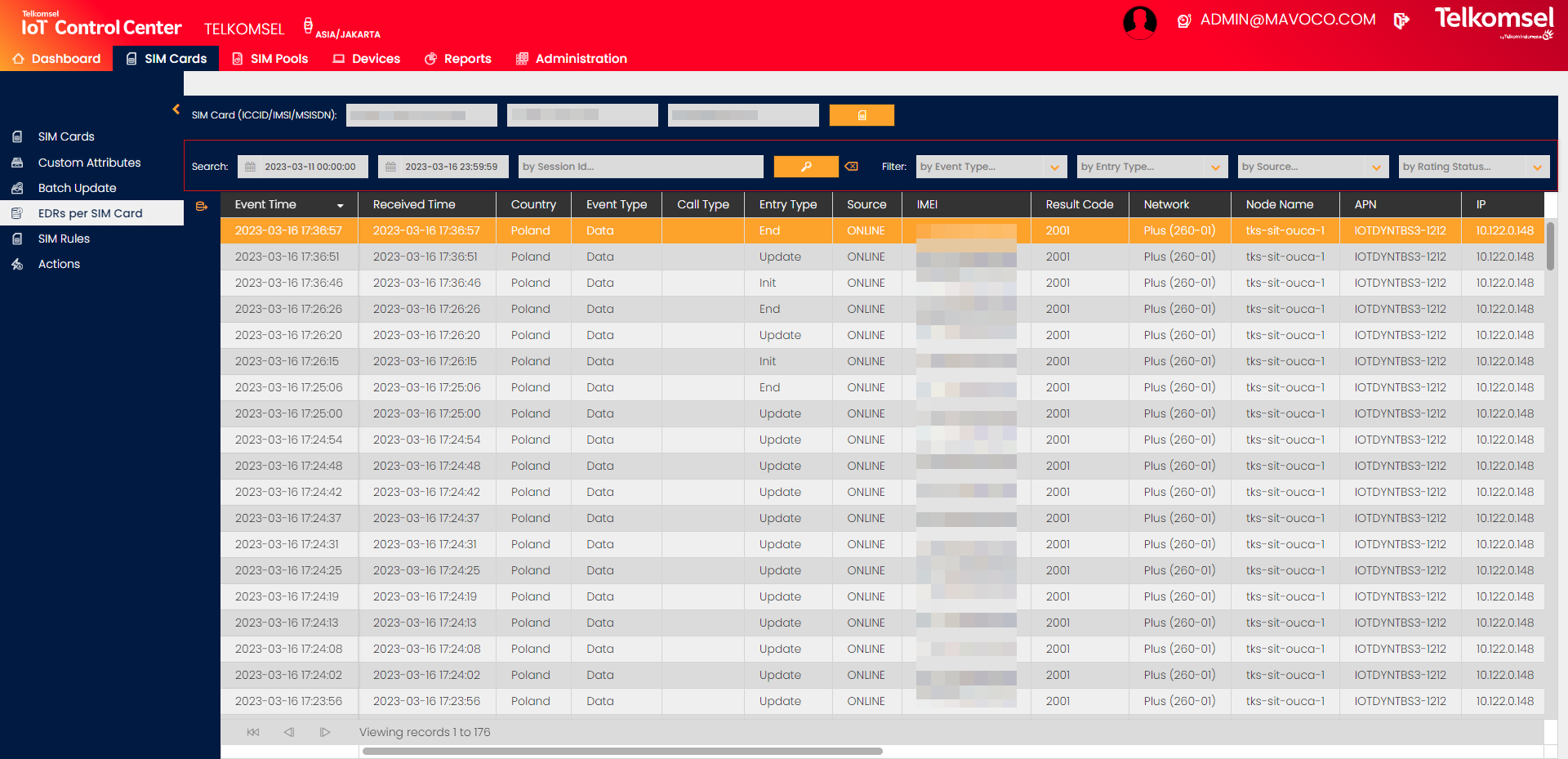
The search option of the EDRs per SIM Card module allows Users to retrieve a list of EDRs by Session Id and time range.
Search results may be filtered with the criteria given in the Search bar.
Filters:
- Event Type
- Entry Type
- Source
- Rating Status
The defined search criteria can be removed by clicking on the Clear search icon.
Download EDRs
Event Data Records of a SIM Card can be exported for future use. The download option includes all EDRs that are currently displayed in the EDRs per SIM Card grid depending on the filter parameters.
To download EDRs:
- If necessary, filter the content of the EDRs per SIM Card grid.
- Click on the Export
 icon.
icon. - Select the file format (
 CSV or
 XLS) in which the EDRs will be exported.
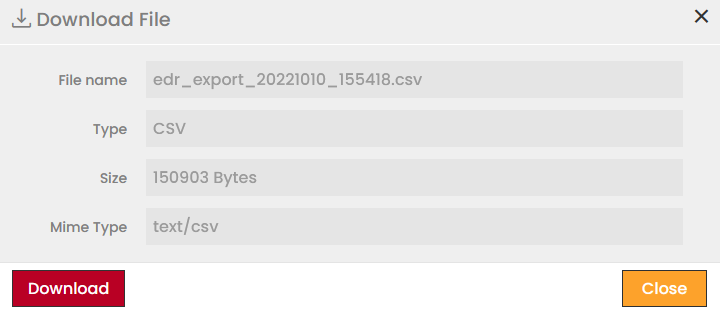
 - Click Download to finalize the process.